


Frequent Ask questions (FAQs)
Q1: Where is the control interface for PTZ camera?
A1: The NVR app has integrated Pelco D Protocol in version 0.5 (phase 1), however, the Web UI for PTZ camera is to be developed in phase 2 . Please contact LRVS for latest updates.
Q2: Where to change live view image effects, e.g., brightness, contrast, hue, and saturation?
A2: We will support this feature in Web UI (phase 2) soon.
Q3: Why can I not playback video clips on hard driver?
A3: First, please make sure your browser has installed video plug-in such as VLC web or Shockwave flash plug-ins to support file format. Also if possible, changing video recording file format such as MP4 file container for H264 file format such that your browser can play it
Q4: Why some video clips don’t start playing until it finishes downloading?
A4: When the NVR does real-time video recording for MP4 file format, all meta data are placed at the end of a recorded file., and the player (browser plug-in) need to access meta data before starting playback. To allowing the player to start playback while downloading the content, video file has to be processed by tools to move all meta data to the beginning of file.
Q5: I can not live view images even in the local network?
A5: First exclude camera connect issue by (1). Checking whether video out has video preview (connect monitor), (2) Checking whether the web server is on (can access setup page etc). (3). Checking whether port 8080 (web socket) and 80 are blocked by network firewall.
Second, check web browser software: the NVR live streams videos over web socket, which also requires web browser to support HTML5 canvas feature to draw video stream in the browser. So it is high recommended to use latest version browser such as Firefox, Chrome, Safari or Internet Explorer 10.0 later version.
Q6: How can I access NVR on an internal network by one Internet IP address?
A6: You need create NAT entry for NVR web server. Forward HTTP session to your public Internet IP address (host name) to internal NVP device (such as 192.168.1.10), at same time, add NAT/port forward port 8080 (web socket) to the NVR .
Q7: I only see one Audio input, where other audio input for 2, 3,4? Where the alarm input/output connections?
For Hi3515 serial devices with 20 pins connectors:
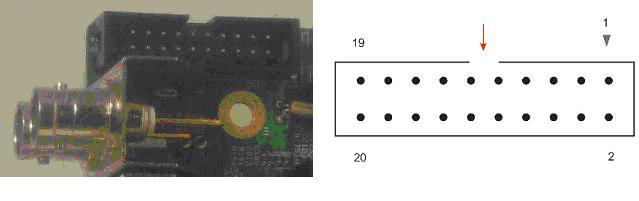
1 – Power (Gnd)
2 – Gnd (Power)
9 – Gnd
10 – Gnd
11 – AIN2
13 – AIN4
14 – AIN3
16 – Alarm input 1
17 – Alarm input 4
18 – Alarm Input 2
19 – Alarm output (Push-pull output)
20 – Alarm input 3
Q8: Why can I not see Rtsp streamings over Rtsp port?
A8: (1) First check allocated Rtsp port is not blocked by firewall.
(2) Make sure username , password and port in “rtsp://” url are correct:
(3) Some RTSP client tools such as Quicktime has not been verified completely.(TBD)
Q9: Can not control PTZ camera?
A9: First make sure, PTZ RS485 port and address are pre-configured properly. For example, for Pelco P protocol , address $00 corresponds to address 1. The second , Check supported PTZ commands. Please refer to web UI API document for troubleshooting..
Q10: I forget NVR access IP address, what should I do?
A10: If you forget NVR’s network setting. First try to check whether NVR’s DHCP is enabled by connecting the NVR device to DHCP network and see any new IP address allocated from the DHCP server. Or if you are in windows Network, try to ping NVR’s hostname ( default: LVRS-4CH-DVR). Otherwise, try ping possible NVR device static IP in the last pre-configured network, saying 192.168.1.xxxx.
If none of above worked, the user must hard-reset the device, restore network setting to the factory, please refer to xxxx on jumper settings.
Q11: When I recorded the video and found the video recording time was not correct?
A11: That was probably the NVR’s system time is not syncronized with the timer server or local time is not correct. The reason for this may be due to bad battery on NVR’s PCB board, or the NTP timer client ( daemon) is not running, or none of NTP time server is available. Please choose NTP time synchronization by inputting active NTVP server with proper interval.
Q12: How to export and import NVR configurations?
A12: Sorry, there is no Web UI interface to export/save NVR configurations, you need super user account to do that. Please contact LRVS on detail procedure. However, if you have save NVR configurations, you can use update interface to change NVR configurations.
Q13: Can not get email alert on motion detection?
A13: It is not trivial to trace where the issue is from? First of all, you need know your smtp server settings, such as port number, use TLS, user name, password etc.
For example, if you want to send email from Gmail account, you need the following basic settings:
SMTP Server: smtp.gmail.com
SMTP port: 587
SMTP use name: your_gmail_account@gmail.com
SMTP password: ********
Use SMTP authentication: Yes
Use SMTP TLS/SSL: Yes
Sometimes, if the mails fails at TLS authentications, the user may need provide their certificate file to pass authentication of smtp server. Unfortunately, this configuration is not opened on Web UI. The user may need super use privilege to upload their TLS_CA file to certain folder. ( Contact LRVS for detail procedure).
If the issues are not from ssmtp setting, the user may need check NVR device’s network settings: such as : NVR device’s gateway, default routing table, host name.
Such as : eth0 setting:
IP address: 192.168.1.10
Network mask: 255.255.255.0
Default gateway: 192.168.1.1
HostName: nvr123
For advanced user who has super user privilege, he/she can remote log on to NVR device with telnet command , and manually send email through ssmtp command, such as
#ssmtp -v recipient@mail.com
and open “dead.letter” of the same folder to get detail failure reason.
Q14: How to communicate with NVR device programmingly?
A14: The LRVS has an internal development document: NVR device development cook book, which defines detail web UI interfaces and illustrates how to control NVR device with different sample codes ( C language and java script for web front end).
Q15: Does NVR device support secure websocket connection ( i.e. wss connection)?
A15: Current version does not support SSL and wss websocket simultaneously. We are working on integrating wss:// protocol and SSL/TLS connection into one web client.
